Install IFS Applications Technical Documentation
This step describes how to unpack and install IFS Applications Technical Documentation. The
unpacking done on a windows machine, for Unix installations the unpacked files will
have to be made available to that machine either by cross mounting discs or using
FTP.
Installing F1 Doc is easiest done when you have a build structure. Either create
one or use the alternative installation sequence
below.
- Install the Base Server runtime to get the configuration builder installed.
- Build the Foundation1 components listed above. See details in the
IFS
Configuration Builder Manual. If you do not have a build and wish to install
manually you can jump to the section Manual
installation below.
- Make sure that you are having the web server target folders available at
the machine where you have your build and your tools.
- Use the setup.exe to install IFS Applications Technical Documentation.
Start setup.exe in the build directory.

- Click Next 2 times.
- Select to install a Server Environment
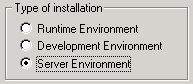
Click Next.
- Select IFS Applications Technical Documentation component to install.
Click Next.
- Select the target folder for the IFS Applications Technical Documentation web.
| Parameter |
Description |
Alternatives/Suggestion |
| Target Directory |
The disk location to use for IFS Applications Technical Documentation. |
Normally put the documentation in the
<ifs_home>\ifsdoc\f1doc\Example: c:\ifs\ifsdoc\f1doc\
If you are planning on installing more than one version of the documentation
tree at the same server you may add a version to the path. Adding a
year to this structure makes it possible to have multiple versions of
the F1Docs running in parallel on the same web server.
<ifs_home>\ifsdoc\<version>\f1doc\Example: c:\ifs\ifsdoc\8\f1doc\
|
You can also locate the web on a folder of choice and make a virtual directory
in the IIS management console on your web server.
Note: Remember to configure connections between IFS Applications
and IFS Applications Technical Documentation in following pages (Adjust
Navigation Links)
Click Next.
- Don't create any start menu items for this installation. Click Next.
- Don't care to create any backup items. Click Next.
- Click Install. The web files will now be unzipped to your
destination.

- When the installation is completed you exit the setup.exe.
(You may look in installation log if you like)
Manual installation can be performed by going into specific folders in the
component PRODFoundation1. This is available in IFS release archive or in the
Build, provided that the component was included in when IFS Configuration
Builder was executed.
The package is a zip file and unpacking is provided by running Unpack.cmd or
ApplyPackage.exe.
Note: Below the general structure of files to start is listed,
to apply this on the release archive, each line has to be preceded by the version
structure as well.
Installing IFS Applications Technical Documentation manually
- Start a cmd window in <ProdFoundation1> component folder, or
in the <build_Home>.
- Change into the execute folder
cd "win32server\IFS Applications
	Technical Documentation\execute"
- Extract with dialog:
- Run unpack.cmd without a parameter gives you the
following dialog
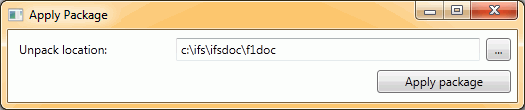
- Enter the path to the location to put the web into. Click Apply
Package.
- Extracting without dialog:
unpack <target directory>
extracts without waiting for the dialog input.
- Extract zip-file manually:
- Use your unzip tool with
win32server\IFS Applications
		Technical Documentation\packed\Documentation.zip
 |
Verify that you managed to unpack the files to the
place of your choice. Normally your installation would look like this:
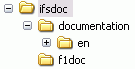
|
 |
| Problem: | Cannot locate the folder
win32server\IFS Applications Technical Documentation in the build home. |
|---|
| Analysis: | The component ProdFoundation1 was not included in
the build process. |
|---|
| Resolution: | Lookup the component in the archive and install
documentation manually. |
|---|
|