Test changes
Before you test
Before you test the SSO installation consider the following points:
-
If this is a brand new installation of the IFS Applications you need to login to
the system as the ifsadmin user in order to setup the user accounts.
To login to the SSO configured application server as the ifsadmin
user enter the following url in a web browser:
http://<hostName>:<port>/client/runtime/Ifs.Fnd.Explorer.application?internalgateway=true.
Now
you will see the IFS Enterprise Explorer login panel where you can enter the
user as ifsadmin and the password as ifsadmin user's database
password. Once you successfully login to IFS EE you can proceed with the admin
tasks that you need to perform. The above URL can be used at any time when you
want to login to IFS EE as a non domain user (eg: system users such as ifsadmin,
ifsapp, ifsconnect etc).
-
Make sure that the Directory ID of the user is given in the following
format : username@fully_qulified_domain_name
Eg:david@corpnet.ifsworld.com
Perform the test
You are now ready to test the SSO configuration. When testing the SSO it is
important to do the test from another computer than the one that has JBoss
server
installed. Windows will not send Kerberos tickets to JBoss server if it runs on the
same computer.
To test the change log in to your client computer (with an IFS user that has
the right to connect to IFS Applications) and open a browser. Point the browser
to the webserver url and test if it is possible to access WebClient and IFS EE.
There is a couple of error that are more likely to appear than others. That
is 401 and 403
Browser related
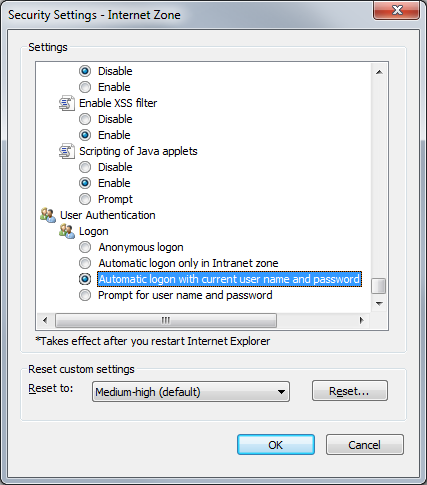
- Internet Explorer - When you point your browser to the IFS Applications
web client, you should be directed to the default page. If you get a windows
login dialog, go to Tools > Internet Options > Security
tab and select the "internet" security zone and open up the Custom
level dialog. Select Automatic logon with current user name and
password.
401 Unauthorized
- The authentication is not successful. This problem can have many roots.
- Check with WireShark that you send a Kerberos ticket and not NTLM, the
ticket that is sent should be big around 1000 bytes of BASE64 encoding and
starting with YII.
- Check that the keytab file is correct.
- Check that JBoss server can access the keytab file.
E.g. If the
keytab is in a location listed in the os PATH variable, then you can be
sure the JBoss runtime can access it. How about security permissions?
- Check that log on user is a IFS user with rights to connect to IFS
Applications
403 Forbidden
- When this error appears the authentication was successful but JBoss
server has
decide that you don't have the rights to access the application.
Unsupported negotiation mechanism ‘NTML’
This error message indicates that the Kerberos negotiation has failed for
some reason. The negotiation protocol then fallbacks to use NTLM authorization
but that is not supported in the SSO configuration, thus the error message. Try
to find the root cause of the failure.