Metadata Translation
This page describes how to manage translations related to Information Sources
metadata, i.e. metadata for Dimension and Fact entities.
Contents
Information Source related metadata should be translated. Translations will
affect the following:
- The Information Source Navigator in IFS Business Analytics
- Display Name field in Information Source feature in Solution Manager in IFS
Enterprise Explorer.
IFS Business Analytics will display Information Source related translatable
attributes
according to the Excel (MS Office) language setting.
The following attributes are translation handled:
- Information Source (fact)
- Information Source name
- Information Source URL texts
- Information Source item name (can be a light item or a measure item)
- Information Source item navigator folder name
- Dimensions
- Dimension name
- Dimension item name
- Dimension item navigator folder name
The first step will be to scan Information Source metadata. This is done in
the Scan Translatable Code feature in Translation
Manger in IEE.
Do as follows:
- First deploy the metadata definition to the database.
- The fact and/or dimension metadata INS file has to be deployed in
the database.
- Open IFS Enterprise Explorer connected to that environment.
- Navigate to Translation Manager /
Administration / Scan Translatable Code
- IFS Enterprise Explorer address is
ifswin:Ifs.Application.TranslatableCodeScanning.Scanner.
- In Select Component field, select the component that the
metadata
source belongs to.
- Click on the Manage Scan List… link
- Select BI Object type in the combo box (refer Figure3: Scan BI
Objects).
- Add the modified or added metadata sources to the
Scan List and click
Ok.
- Now start the scanning by clicking on the
Start Scanning link.
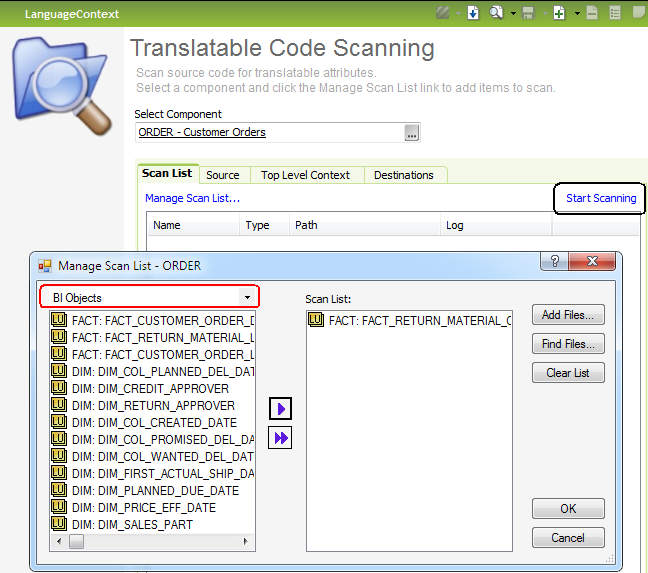
Figure 1: Scan BI Objects
After having scanned the Information Source (Fact) and Dimension specific
metadata, then next step is to bind all scanned attributes to terms with
associated display names and usage texts.
To find existing term connections related to metadata, do as follows:
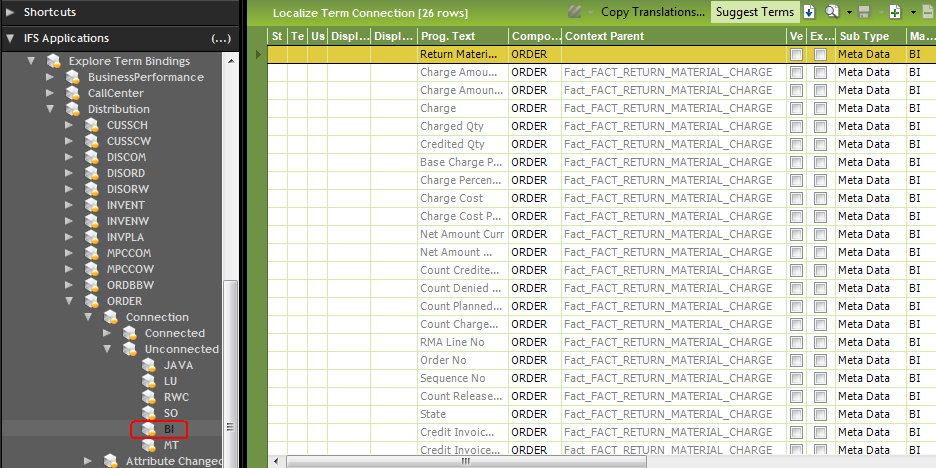
- Navigate to Localized Term Connection
feature by navigating via the component to be explored.
- Select category BI under
Connected section.
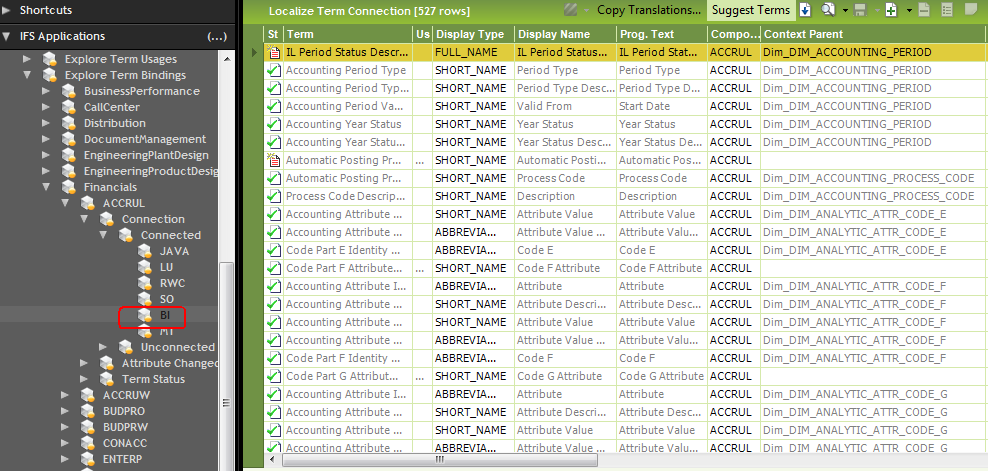
Figure 3: Term Connections